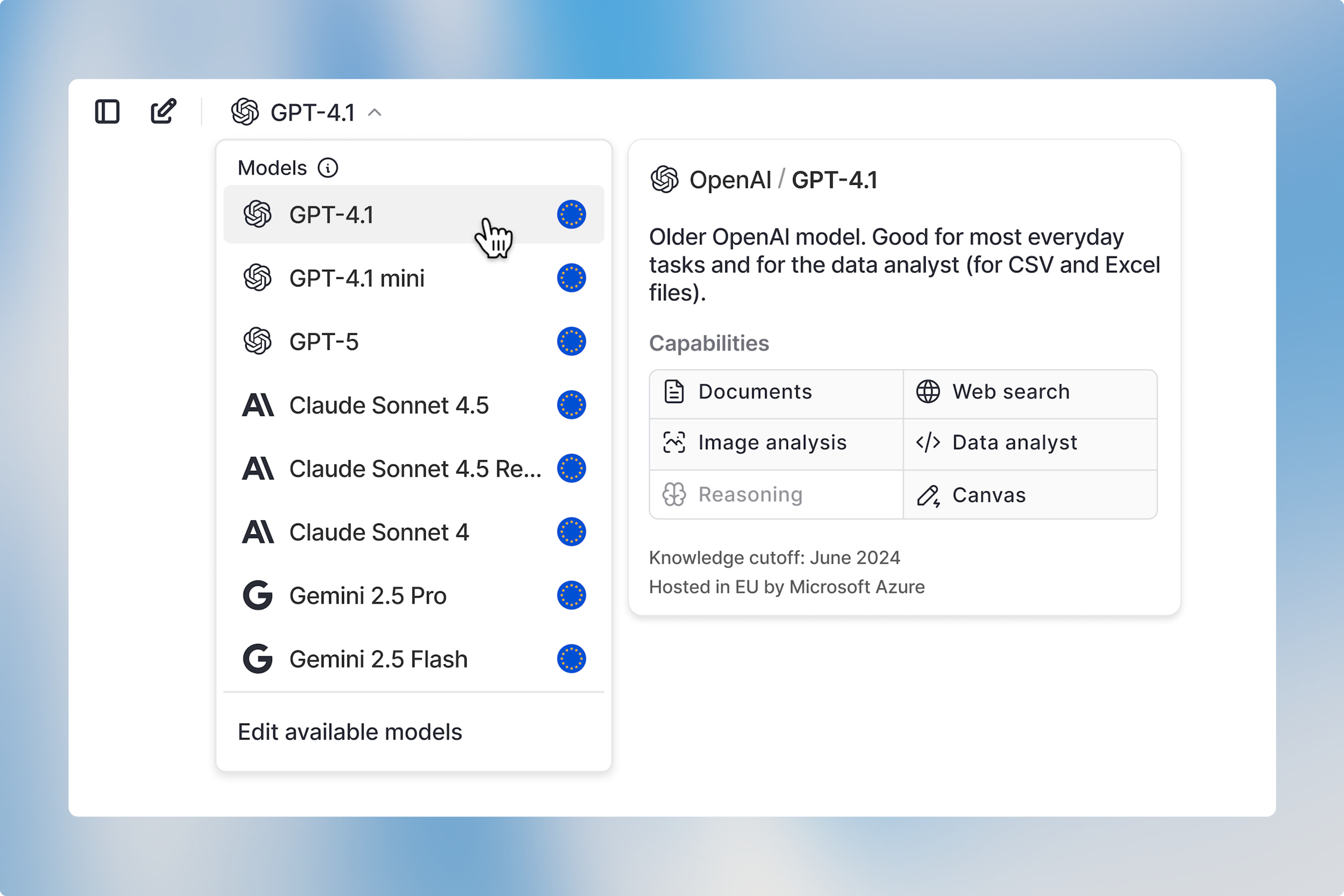
To use Canvas, open a new chat and select a model that supports Canvas. You’ll see Canvas availability indicated by icons in the model selector — if the Canvas icon is greyed out, that model doesn’t support Canvas.
Canvas works best with GPT-4.1 at the moment.
Langdock Model selector with the model card
When using models that support Canvas, activate it by clicking the Canvas button in the input bar at the bottom of your screen. Once you activate Canvas, the button will highlight to confirm it’s active, and you can begin creating and editing in Canvas.
Image shows how the input bar looks when canvas is selected
1
How to use Canvas — In-line editing
Canvas automatically opens on the right side after you send your prompt and the AI generates a response. You can edit the output directly in the Canvas editor on the right. Type and modify text manually, or select specific sections to have the model reformat or rewrite just those parts.
Image shows in-line editing in Canvas
Image shows AI assisted in-line editing in Canvas
2
Optimizing the whole text generally
At the bottom right corner you’ll find three buttons to optimize your text:
Make it longer
By clicking this button, the entire text in Canvas will be expanded with additional detail and context.
Button to ask the Model to make the text longer
Make it shorter
By clicking this button, the entire text in Canvas will be condensed to its key points.
Button to ask the Model to make the text shorter
Suggest edits
By clicking this button, the AI will analyze your text and provide improvement suggestions.
Button to ask the Model to suggest edits
3
Formatting
You can manually format text in Canvas using the formatting toolbar in the top right. Available options include bold, italic, headings (H1–H3), and lists (bulleted and ordered).
Image shows formatting options in Canvas
4
Editing in the regular chat
If the Canvas formatting options don’t cover what you need, you can give specific instructions in the regular chat to refine the content.
5
Versioning
On the top right, you’ll see a version selector that lets you view previous iterations of your text. Navigate between versions and restore whichever one works best.
Image shows versioning options in Canvas
6
Copy and Export
Use the copy button on the top right to copy the entire text to your clipboard. You can also export the Canvas content as PDF, Word, or Markdown.
Image shows exporting options from Canvas
7
Multiple Canvas in one Chat
You can open multiple Canvas instances in a single chat session. Switch between them using the Canvas selector (top right, next to the share button) or scroll to find the specific Canvas in your chat history. Text Canvas display the Canvas icon, while Dev Canvas show a code icon for easy identification.
Image shows how multiple Canvas in one chat look like
Related:
Actions in Chat: https://docs.langdock.com/product/chat/actions-in-chat
Canvas for development: https://docs.langdock.com/product/chat/canvas-for-development
Was this page helpful? Yes / No
Assistant: Responses are generated using AI and may contain mistakes.